D1V Docs / CLI / 4 sections
Use D1V PAI with Claude Desktop
Claude Desktop is a separate CC-Switch target with its own provider store and live configuration. Configure it only after the Claude Code route works.
01
Understand the separate target
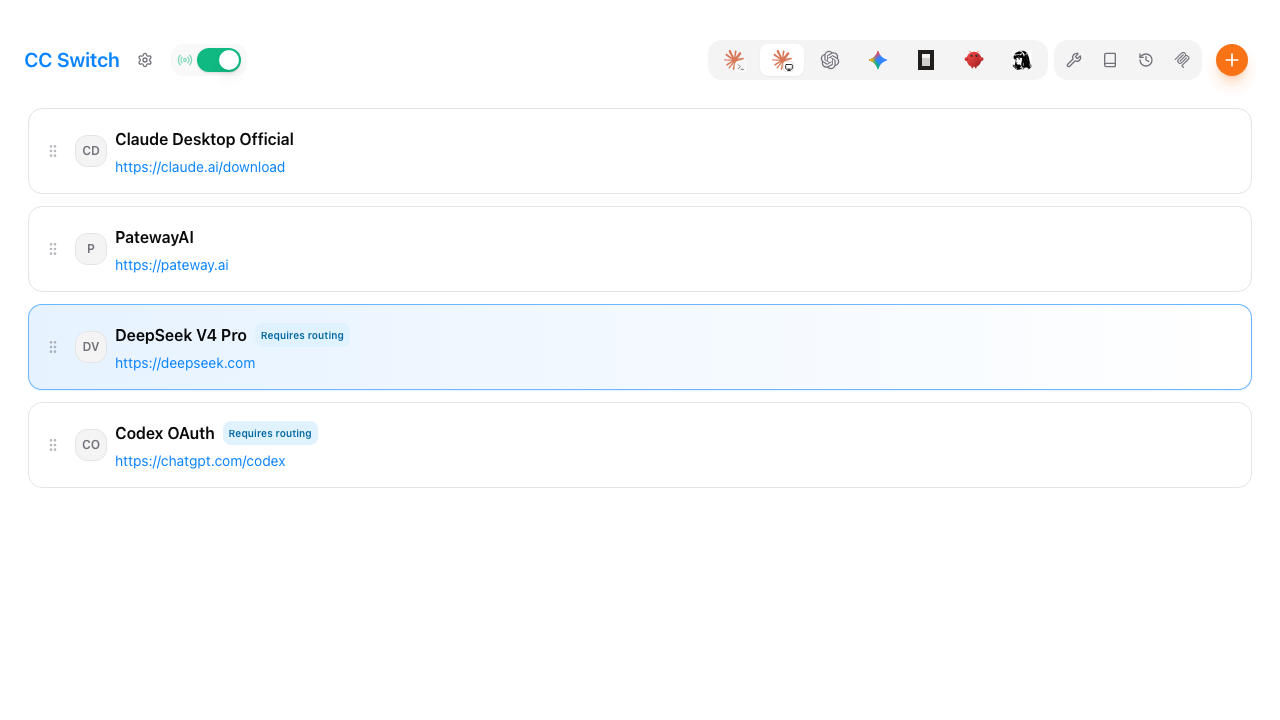
Claude Desktop and Claude Code are separate applications in CC-Switch. Enabling a Claude Code provider does not configure Claude Desktop.
02
Add the provider and map roles
- 1Select Claude Desktop and add a Custom provider.
- 2Enter
D1V PAI, the project key, and service roothttps://pai.d1v.ai. - 3Choose OpenAI Responses API (routing required).
- 4Map the default, Sonnet, Opus, and Haiku roles to IDs returned by D1V PAI
/models. - 5Save and enable the provider.
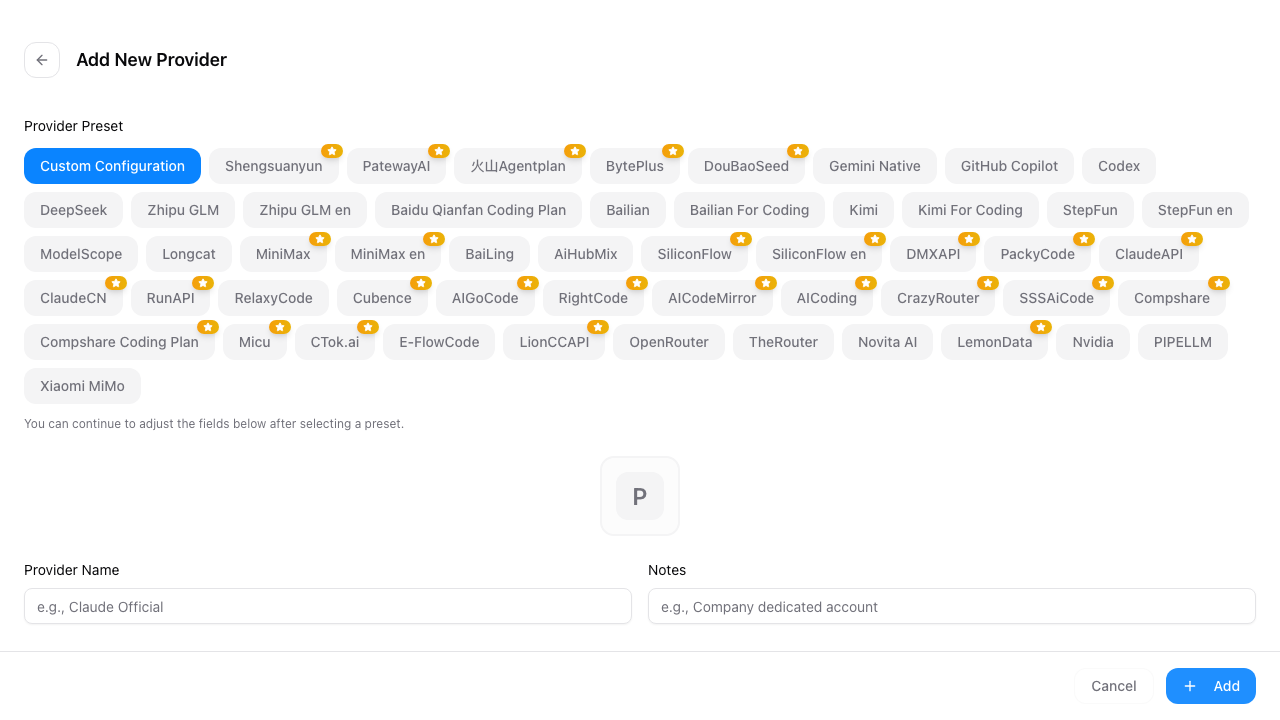
Claude Desktop has its own provider form and model mapping. Source: official CC-Switch user manual.
03
Enable routing and restart Desktop
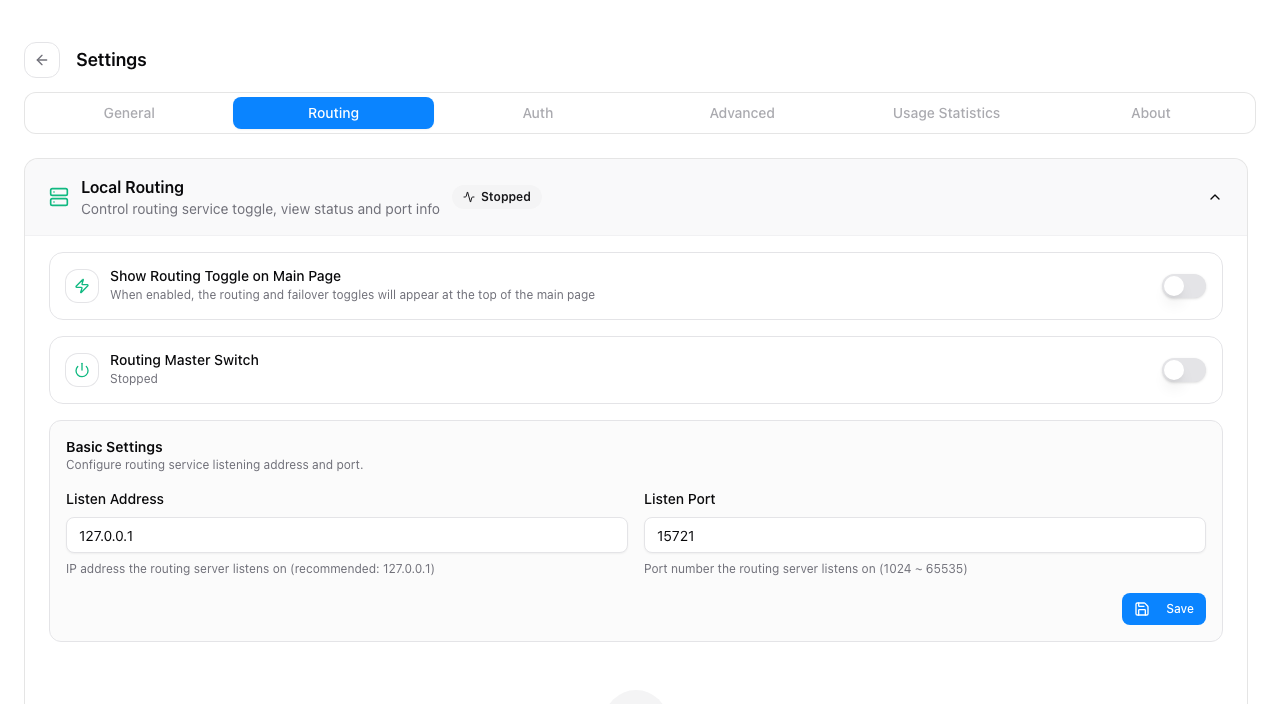
Enable the local routing service, then enable takeover for Claude Desktop. Keep CC-Switch running and fully quit and reopen Claude Desktop; it does not hot-reload provider configuration.
04
When to use this path
Use this path only when you specifically need the Claude Desktop interface. For terminal coding work, Codex is simpler and Claude Code has fewer application-level variables.
Reference: CC-Switch Claude Desktop manual.